
WebView Menu dengan Encrypted Authorization
Setup WebView menu dengan authorization terenkripsi
Panduan WebView dengan Encrypted Authorization
Fitur ini berguna untuk add-ons seperti deposit via VA/QRIS atau layanan external lainnya yang perlu otomatis mendapatkan info idmember dan data user tanpa perlu login manual.
Ada dua cara mengirim data user ke website WebView:
- Encrypted Authorization — data user dikirim dalam payload terenkripsi melalui placeholder
{{encrypted_authorization}}. - Placeholder langsung — nilai user dikirim apa adanya, misalnya
{{kode}},{{nama}}, atau{{identifier}}.
Keduanya bisa dipakai di custom header maupun parameter query URL.
Mengapa Perlu Enkripsi?
Daripada kirim ID member secara langsung seperti ini:
Authorization: Bearer OX0001
Lebih baik kirim dalam bentuk terenkripsi:
Authorization: ENC Key="...", Signature="..."
Payload yang ter-decrypt berisi:
{
  "idmember": "OX0001",
  "token": "ebb1fdbc03b3ce5c25aa6ce8eea30bd2b7dd58e9",
  "date": "2026-06-23 09:41:16"
}
Gunakan placeholder langsung hanya jika website memang membutuhkan nilai mentah dan risikonya sudah dipahami.
Cara Mengaktifkan di Admin Panel
1. Buka Canvas dan Pilih Widget Menu
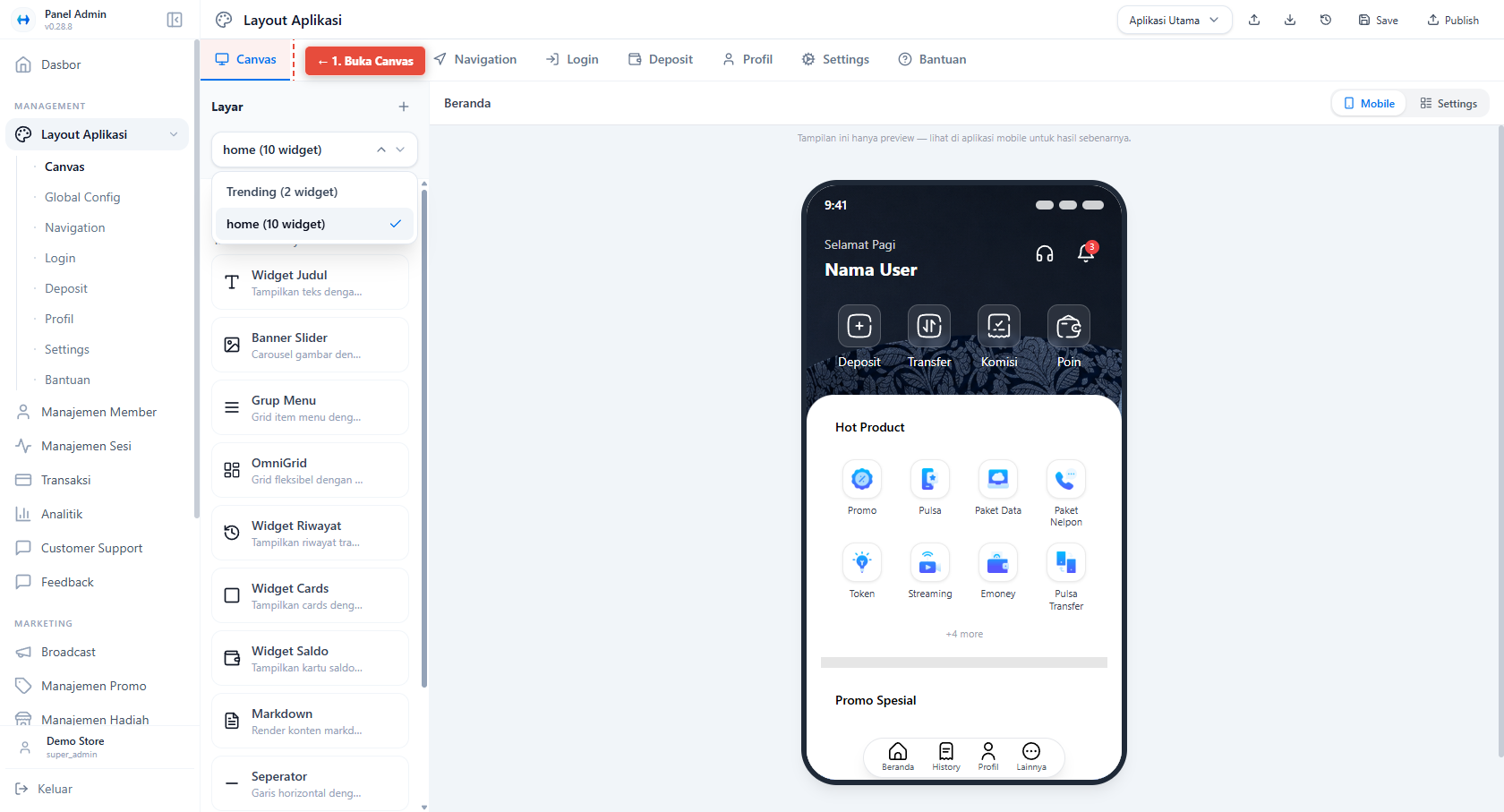
Canvas aktif dengan tab Canvas dipilih.
Masuk ke Layout Aplikasi → tab Canvas, pilih layar yang ingin diedit.
2. Pilih Widget Menu
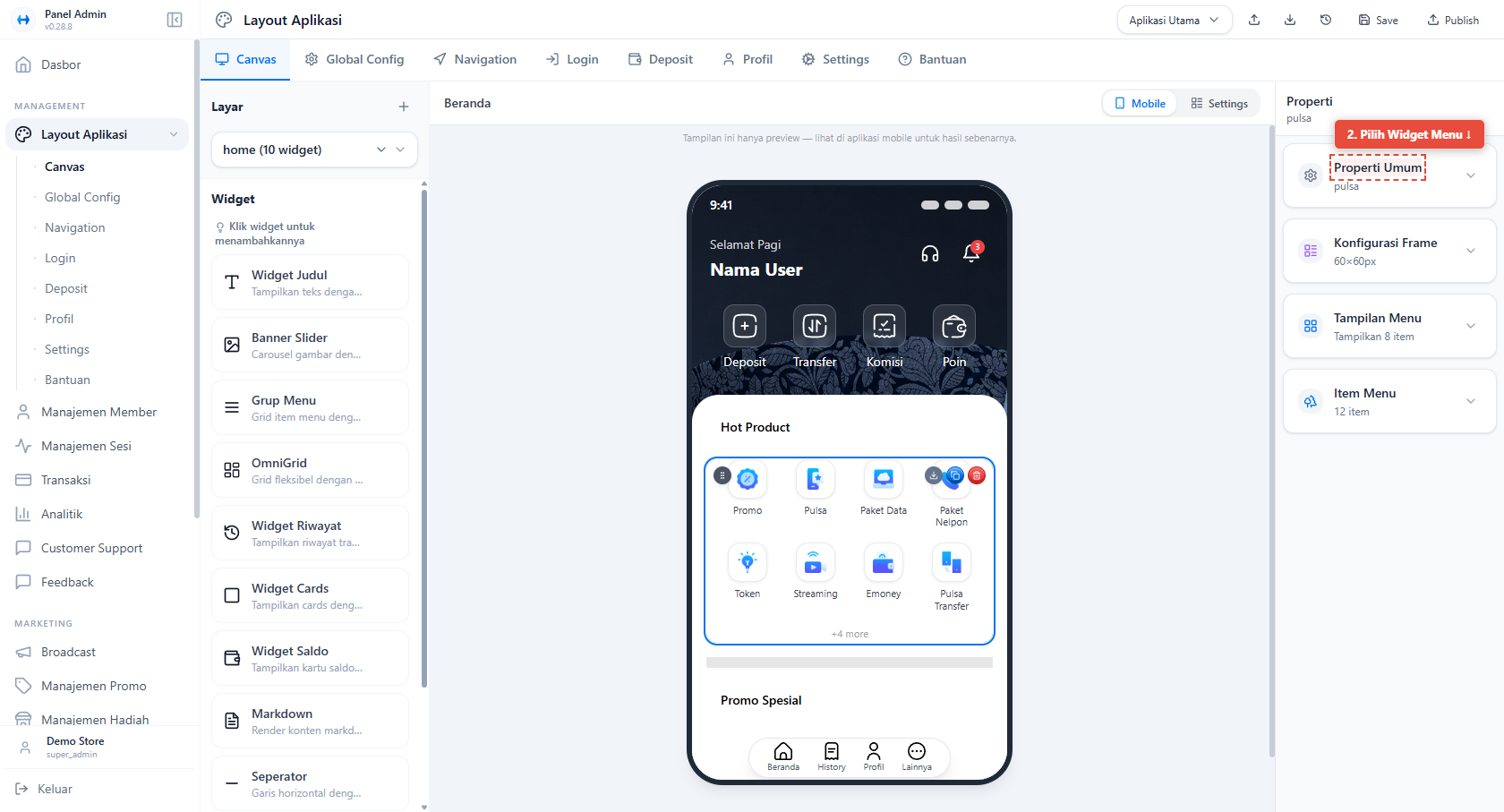
Klik widget Grup Menu di canvas.
3. Expand Menu Items
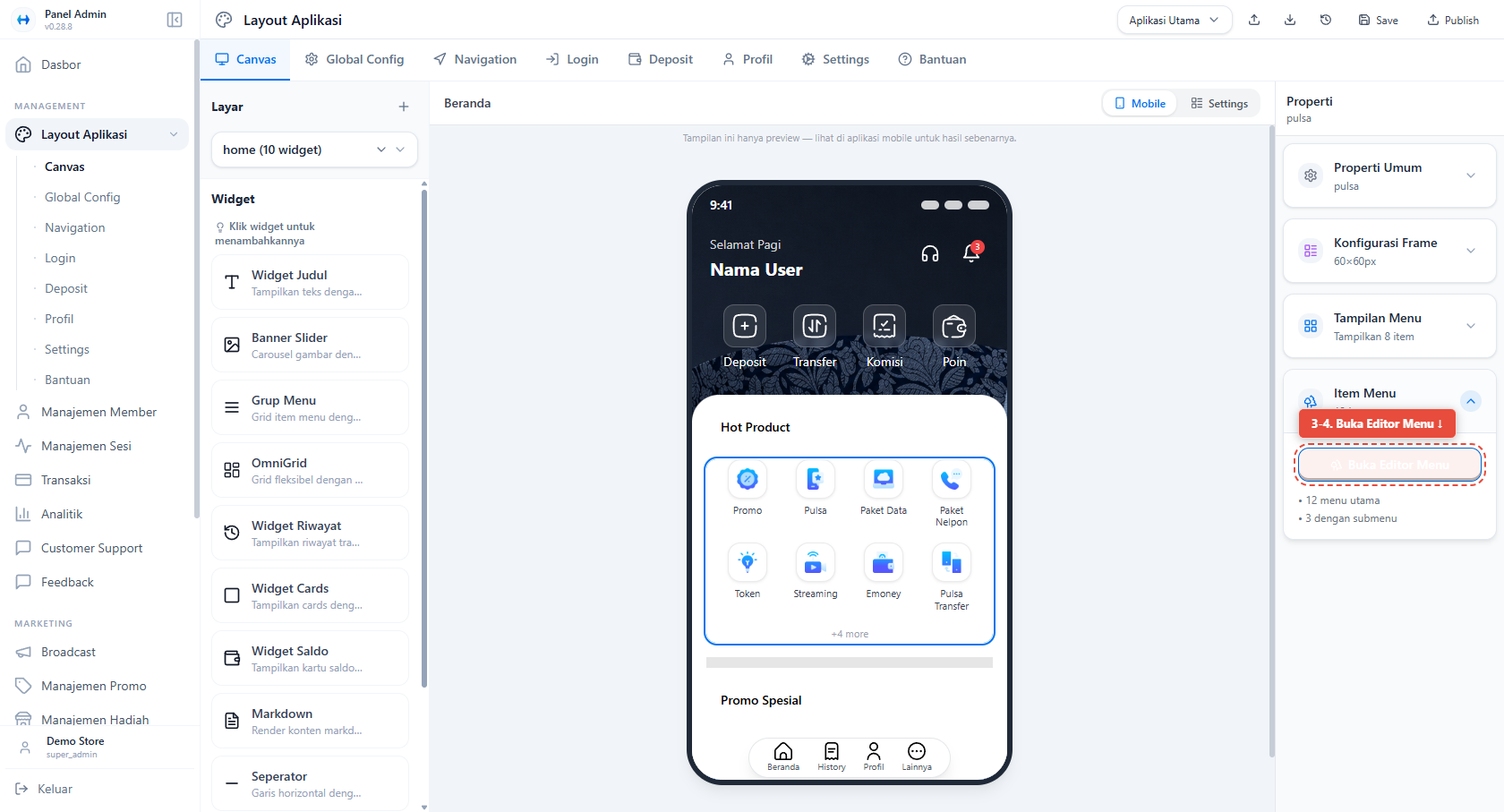
Di panel properti kanan, klik Item Menu untuk melihat daftar menu, lalu klik Buka Editor Menu.
4. Buka Editor Menu
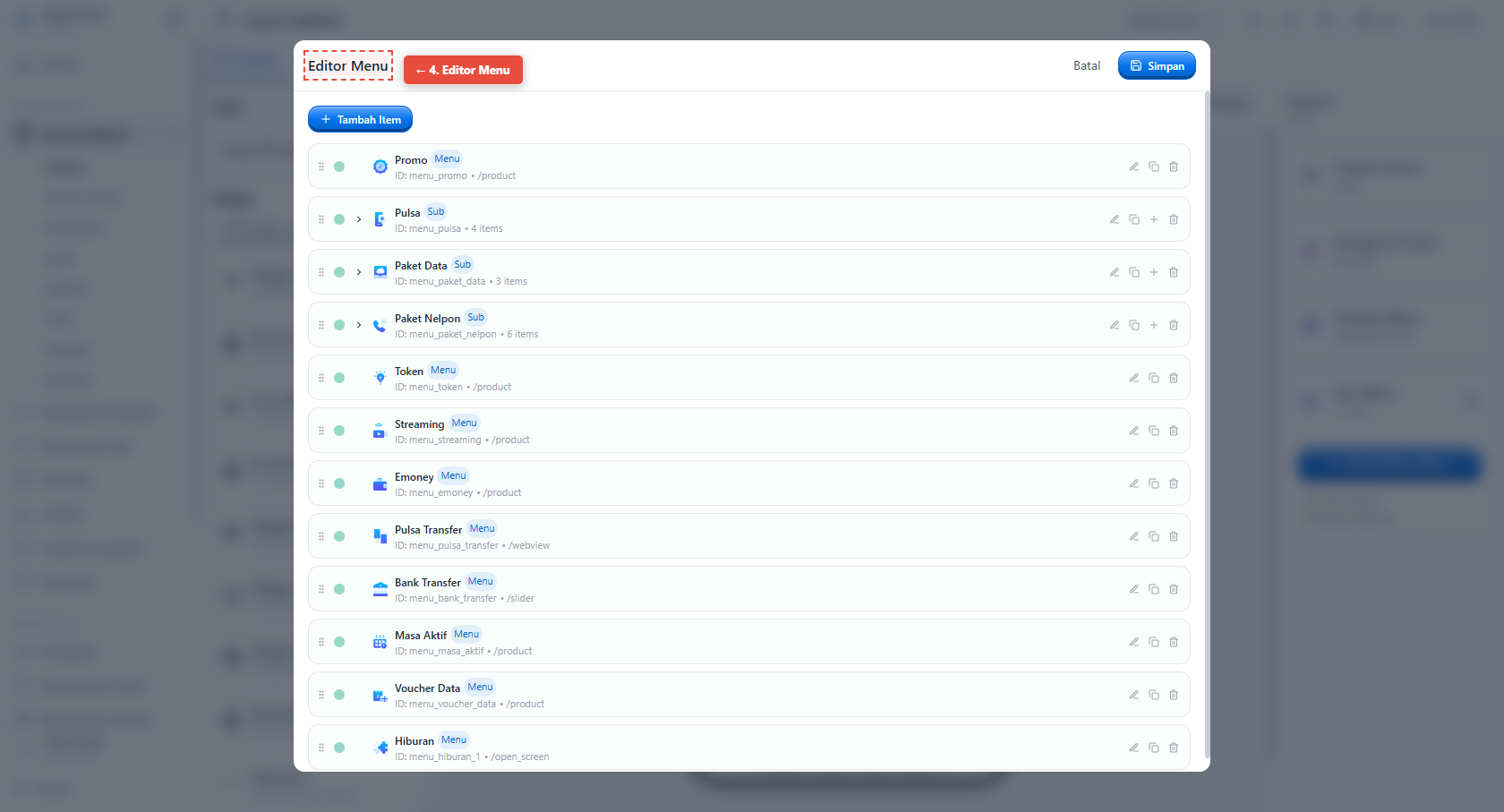
Klik tombol Buka Editor Menu.
5. Edit Menu Item dengan Route WebView
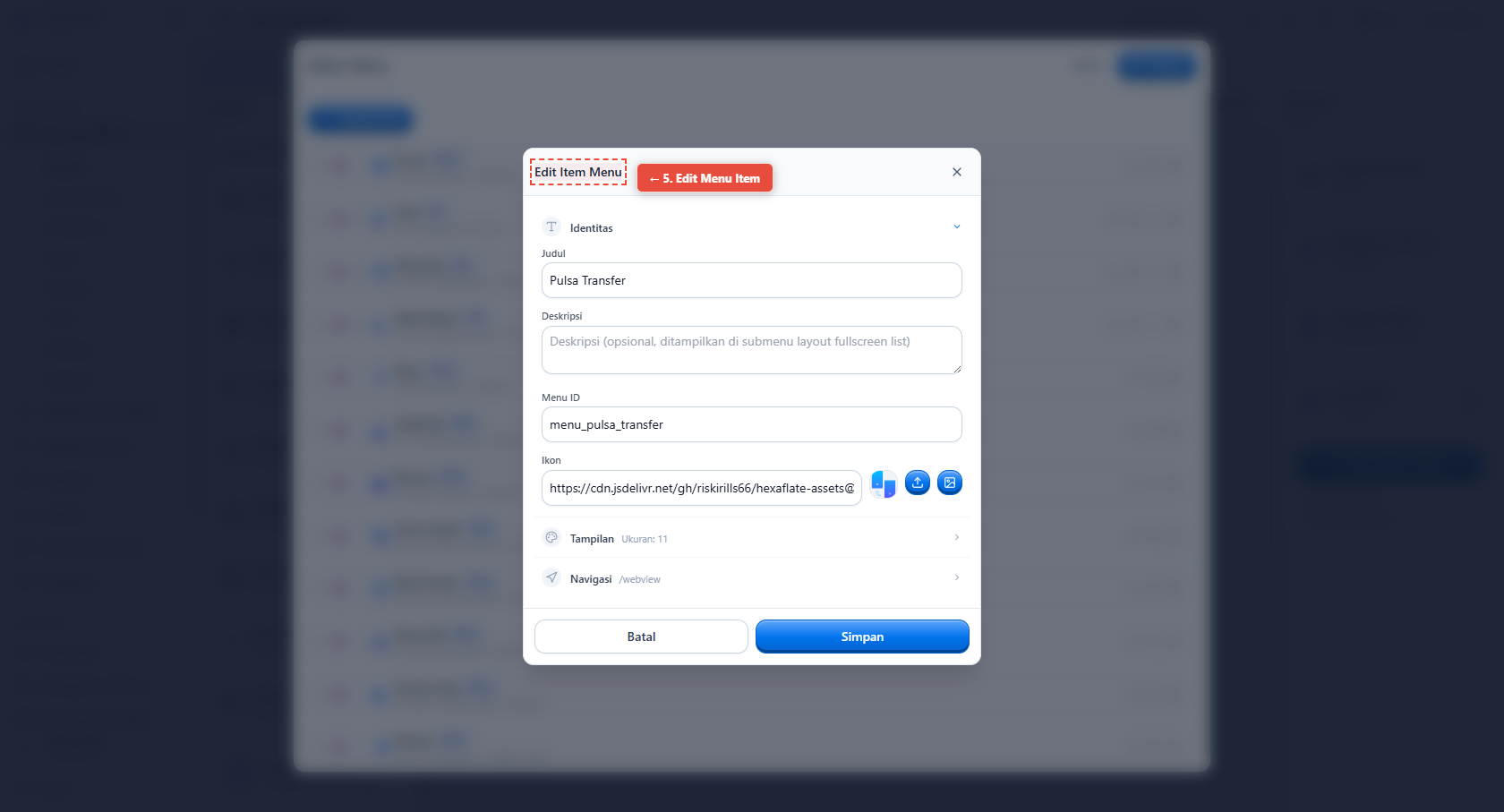
Cari menu item yang menggunakan route /webview (contoh: "Pulsa Transfer"), lalu klik tombol Edit.
6. Expand WebView Configuration
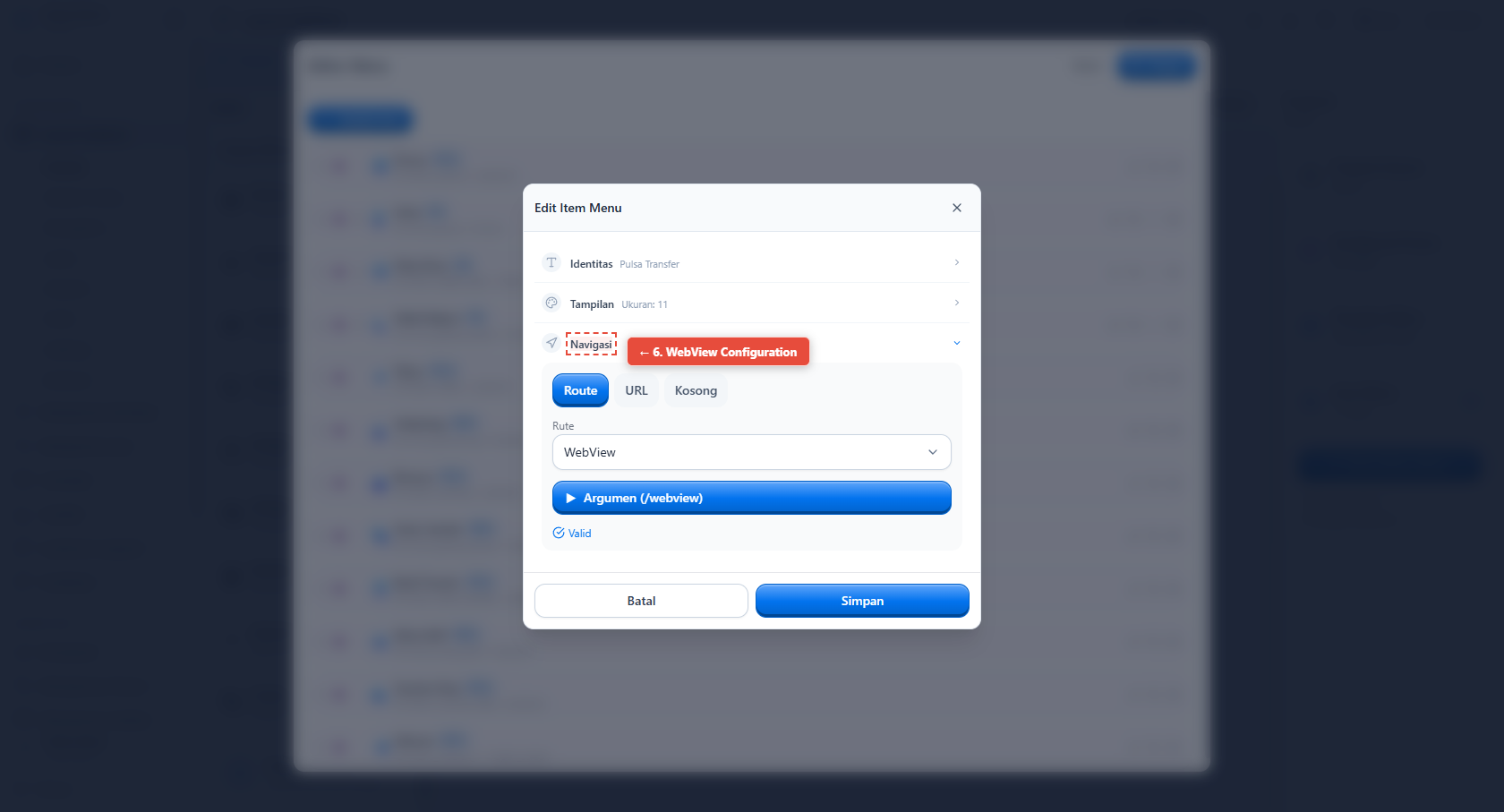
Di bagian Navigasi, pastikan route WebView dipilih.
7. Expand WebView Arguments
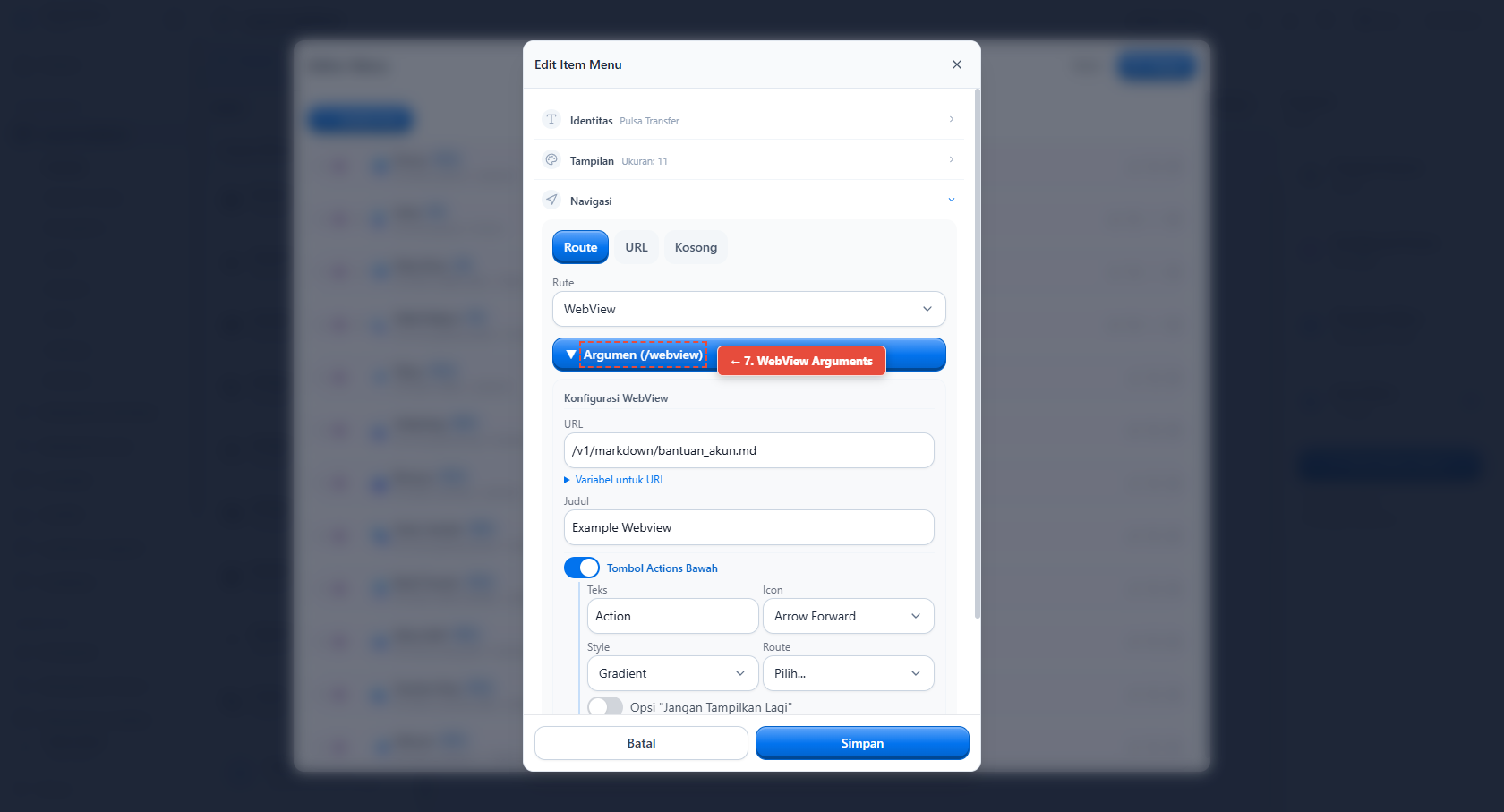
Klik Argumen (/webview) untuk membuka konfigurasi WebView.
8. Isi URL Website
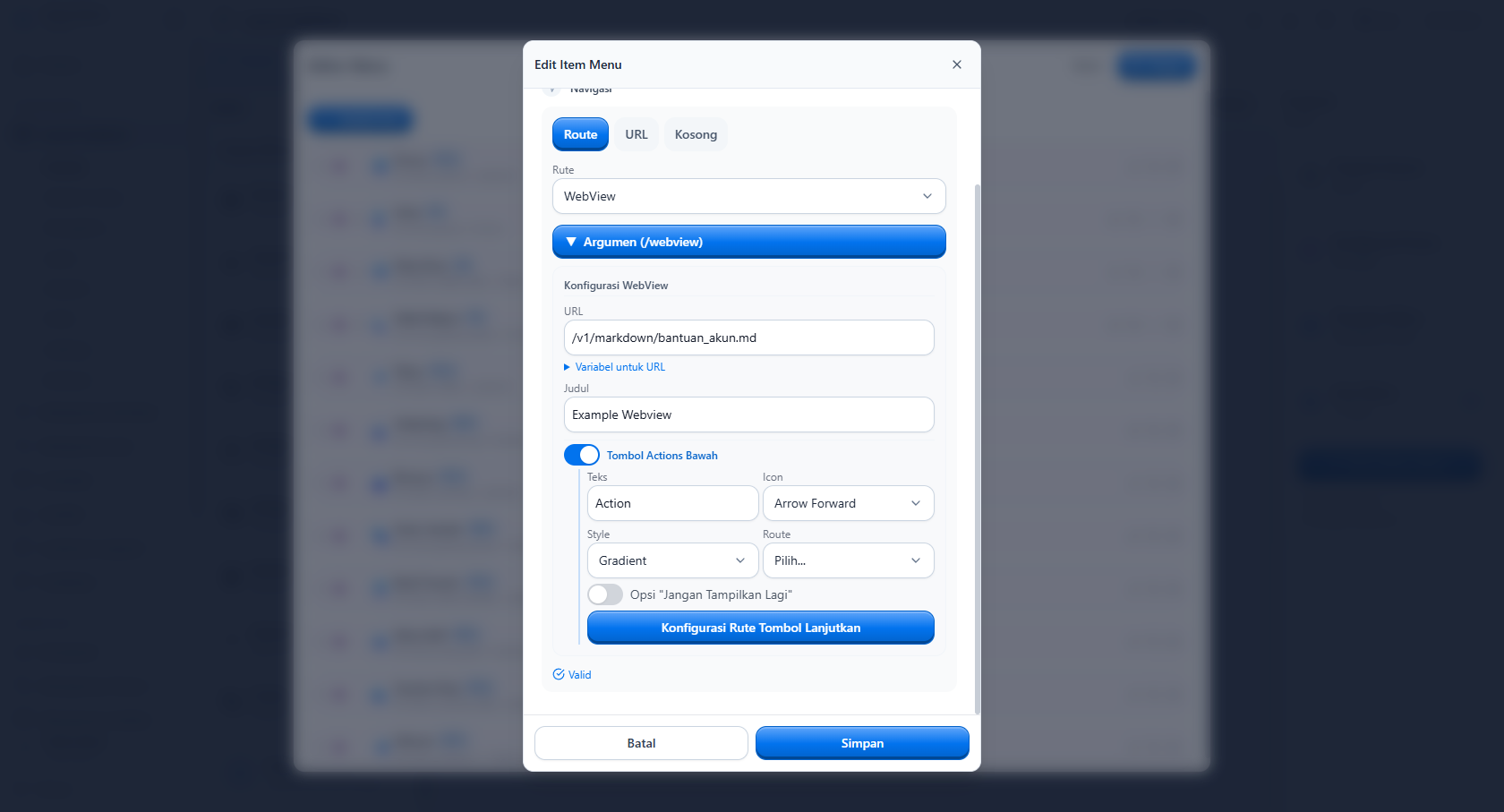
Isi field URL dengan alamat website.
Isi field URL dengan alamat website, contoh: https://example.com/webview
Jika ingin mengirim nilai langsung lewat query parameter, placeholder bisa ditulis langsung di URL:
https://example.com/webview?idmember={{kode}}&identifier={{identifier}}
Jika ingin mengirim encrypted authorization lewat query parameter:
https://example.com/webview?authorization={{encrypted_authorization}}
9. Aktifkan Encrypted Authorization
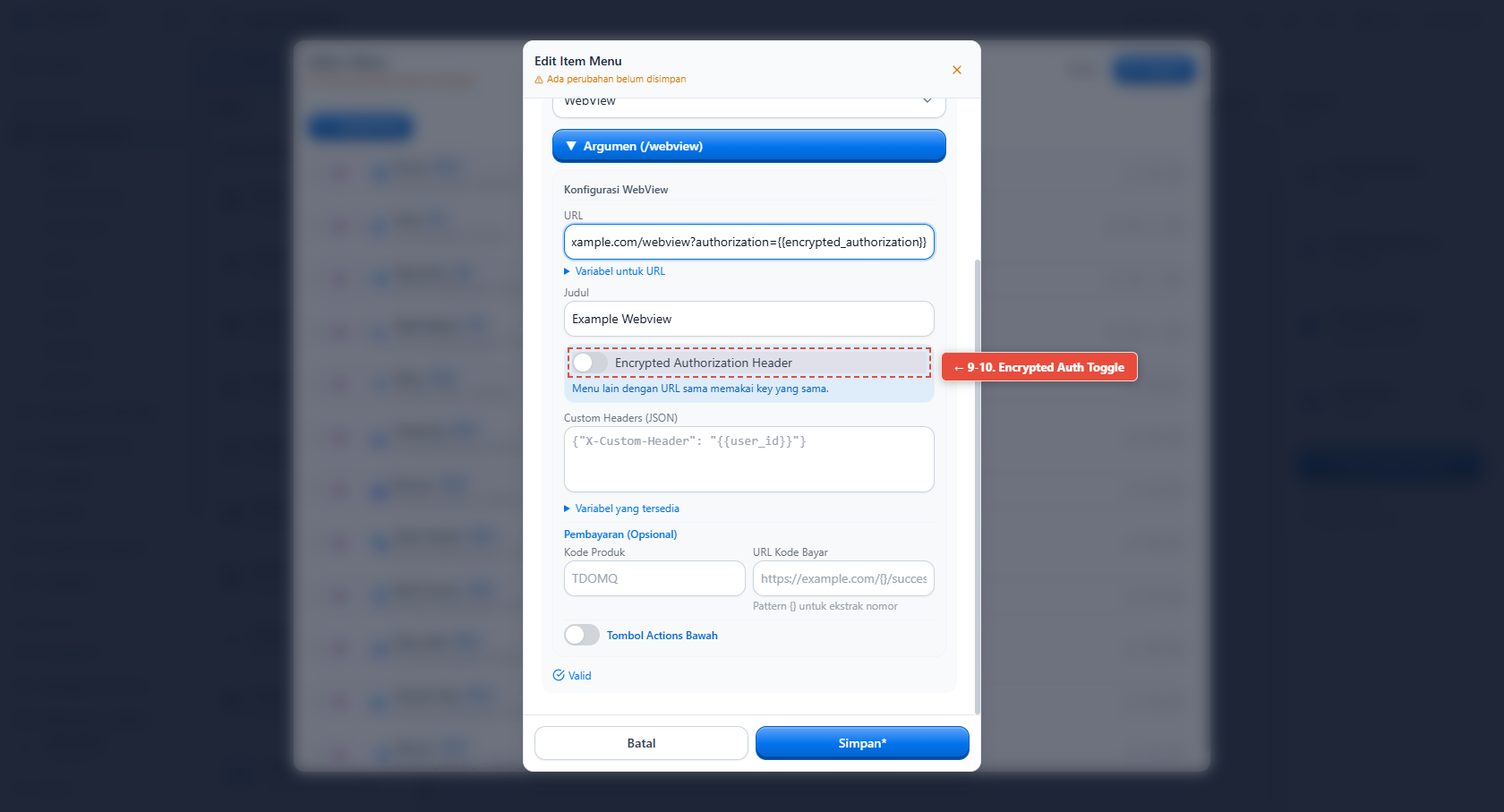
Scroll ke bawah, cari toggle Encrypted Authorization Header.
10. Klik Toggle untuk Mengaktifkan
Klik toggle tersebut. Sistem akan generate private key blob secara otomatis.
11. Copy Private Key Blob
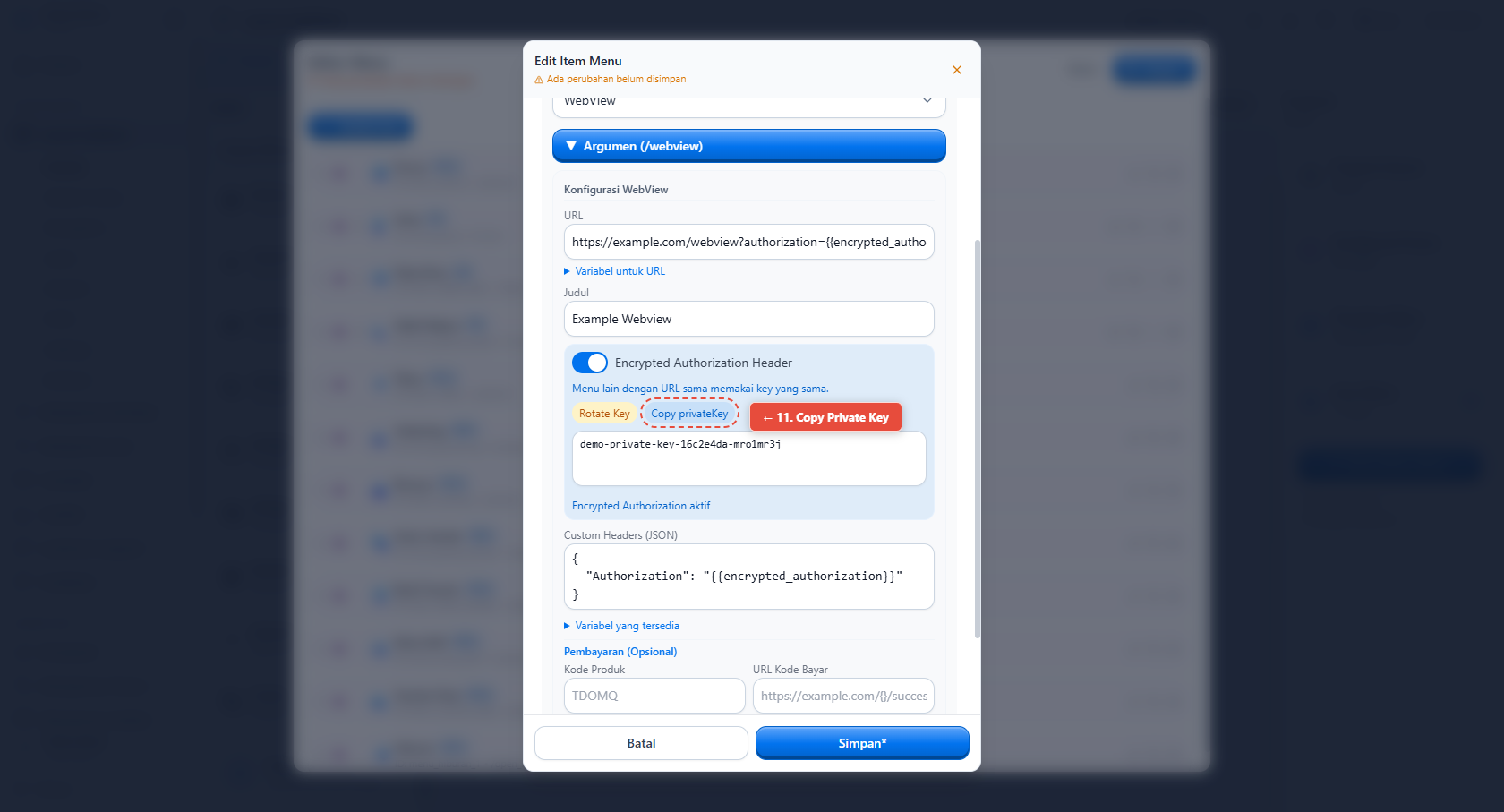
Klik tombol Copy privateKey untuk menyalin private key blob. Kirim key ini ke developer website untuk decrypt.
12. Simpan Menu Item
Klik tombol Simpan di pojok kanan bawah editor menu item.
13. Simpan Menu Editor
Klik tombol Simpan di menu editor utama untuk menyimpan semua perubahan.
14. Publish
Klik tombol Publish di pojok kanan atas untuk menerapkan perubahan ke aplikasi client.
Selesai! Sistem akan mengganti placeholder {{encrypted_authorization}} menjadi nilai authorization terenkripsi saat WebView dibuka.
Contoh custom header untuk encrypted authorization:
{
  "Authorization": "{{encrypted_authorization}}"
}
Menggunakan Placeholder Langsung Tanpa Enkripsi
Placeholder langsung adalah nilai yang dikirim apa adanya, tanpa proses encrypt/decrypt. Placeholder ini bisa digunakan di custom header maupun URL query parameter.
Contoh di custom header
{
  "X-Member-ID": "{{kode}}",
  "X-Member-Name": "{{nama}}",
  "Authorization": "{{x_token}}:{{identifier}}:{{key}}:{{app_check_token}}"
}
Website akan menerima header seperti:
X-Member-ID: OX0001
X-Member-Name: Budi
Authorization: backend-token:identifier-value:key-value:app-check-token
Contoh di query parameter
https://example.com/webview?idmember={{kode}}&name={{nama}}&identifier={{identifier}}
Website akan menerima URL seperti:
https://example.com/webview?idmember=OX0001&name=Budi&identifier=identifier-value
Placeholder yang tersedia
| Placeholder | Keterangan |
|---|---|
{{user_id}} | ID/kode user, sama dengan {{kode}} |
{{kode}} | Kode user/member |
{{nama}} | Nama user |
{{email}} | Email user |
{{saldo}} | Saldo user |
{{komisi}} | Komisi user |
{{poin}} | Poin user |
{{alamat}} | Alamat user |
{{nama_pemilik}} | Nama pemilik |
{{identifier}} | Identifier user aktif |
{{key}} | Key session user aktif |
{{app_check_token}} | Firebase App Check token |
{{x_token}} | Token backend untuk bagian pertama Authorization |
{{app_version}} | Versi aplikasi |
{{package_name}} | Package name aplikasi |
{{app_name}} | Nama aplikasi |
{{build_number}} | Build number aplikasi |
{{encrypted_authorization}} | Authorization terenkripsi dari backend |
Snippet contoh decrypt Authorization
Node.js
const crypto = require('crypto');

function decryptAuthorization(authHeader, privateKeyBlob) {
  const match = authHeader.match(/ENC Key="([^"]+)", Signature="([^"]+)"/);
  const authKey = Buffer.from(match[1], 'base64');
  const signature = Buffer.from(match[2], 'base64');

  const mix = Buffer.from(privateKeyBlob, 'base64');
  const iv = mix.subarray(0, 16);
  const originalHmac = mix.subarray(16, 80);
  const encryptedPem = mix.subarray(80);

  const sha512Hex = crypto.createHash('sha512').update(authKey).digest('hex');
  const hmacKey = Buffer.from(sha512Hex.substring(0, 64), 'hex');

  const newHmac = crypto.createHmac('sha512', hmacKey).update(encryptedPem).digest();
  if (!crypto.timingSafeEqual(originalHmac, newHmac)) {
    throw new Error('HMAC verification failed');
  }

  const decipher = crypto.createDecipheriv('aes-256-cbc', authKey, iv);
  const pemPrivateKey = Buffer.concat([
    decipher.update(encryptedPem),
    decipher.final(),
  ]).toString('utf8');

  const decrypted = crypto.privateDecrypt(
    {
      key: pemPrivateKey,
      padding: crypto.constants.RSA_PKCS1_OAEP_PADDING,
      oaepHash: 'sha1',
    },
    signature
  );

  return JSON.parse(decrypted.toString('utf8'));
}

// Contoh penggunaan
const authHeader = req.headers.authorization;
const privateKeyBlob = "tempel_key_di_sini";

const userData = decryptAuthorization(authHeader, privateKeyBlob);
console.log(userData.idmember); // "OX0001"

// Contoh hasil ter-decrypt:
// {
//   "idmember": "OX0001",
//   "token": "ebb1fdbc03b3ce5c25aa6ce8eea30bd2b7dd58e9",
//   "date": "2026-06-23 09:41:16"
// }
Python
pip install pycryptodome
import re
import json
import base64
import hashlib
from Crypto.Cipher import AES, PKCS1_OAEP
from Crypto.PublicKey import RSA
from Crypto.Hash import SHA1, HMAC, SHA512

def decrypt_authorization(auth_header, private_key_blob):
    match = re.match(r'ENC Key="([^"]+)", Signature="([^"]+)"', auth_header)
    auth_key = base64.b64decode(match.group(1))
    signature = base64.b64decode(match.group(2))

    mix = base64.b64decode(private_key_blob)
    iv = mix[0:16]
    original_hmac = mix[16:80]
    encrypted_pem = mix[80:]

    sha512_hash = hashlib.sha512(auth_key).hexdigest()
    hmac_key = bytes.fromhex(sha512_hash[0:64])

    h = HMAC.new(hmac_key, digestmod=SHA512)
    h.update(encrypted_pem)
    new_hmac = h.digest()

    if original_hmac != new_hmac:
        raise ValueError('HMAC verification failed')

    cipher = AES.new(auth_key, AES.MODE_CBC, iv)
    pem_private_key = cipher.decrypt(encrypted_pem)
    padding_length = pem_private_key[-1]
    pem_private_key = pem_private_key[:-padding_length]

    rsa_key = RSA.import_key(pem_private_key)
    cipher_rsa = PKCS1_OAEP.new(rsa_key, hashAlgo=SHA1)
    decrypted = cipher_rsa.decrypt(signature)

    return json.loads(decrypted.decode('utf-8'))

# Contoh penggunaan
auth_header = request.headers.get('Authorization')
private_key_blob = "tempel_key_di_sini"

user_data = decrypt_authorization(auth_header, private_key_blob)
print(user_data['idmember'])  # "OX0001"

# Contoh hasil ter-decrypt:
# {
#   "idmember": "OX0001",
#   "token": "ebb1fdbc03b3ce5c25aa6ce8eea30bd2b7dd58e9",
#   "date": "2026-06-23 09:41:16"
# }
Catatan Penting
- Ganti
tempel_key_di_sinidengan private key blob yang di-copy dari admin panel (tombol Copy privateKey) - Gunakan HTTPS untuk website agar header, query parameter, dan payload terenkripsi saat transit
- Header hanya dikirim di request WebView yang di-load oleh aplikasi, gunakan session/cookie untuk request berikutnya jika website membutuhkan state login
- Placeholder langsung tidak terenkripsi. Untuk data sensitif, lebih aman gunakan
{{encrypted_authorization}} - Jika memakai placeholder di query parameter, pastikan website siap menerima nilai dari URL query dan melakukan URL decode jika diperlukan